Optimizing Augmentation Pipelines for Speed
On this page
- Quick Reference: Performance Essentials
- Performance Optimization Strategies
- Where to Go Next?
PyTorch DataLoader workers can prepare future batches while the GPU trains on the current batch. Albumentations runs as one stage inside each worker, after decode and before tensor conversion and collation. Healthy training keeps each preparation block shorter than the corresponding GPU step, so the next batch is ready before the GPU needs it.
If the complete worker path takes longer than the model step, the prefetch queue eventually drains and training pauses for data. Fast augmentation helps keep the worker path inside the GPU time budget. Profile storage, decode, augmentation, tensor conversion, collation, transfer, worker count, and prefetch settings before choosing a fix.
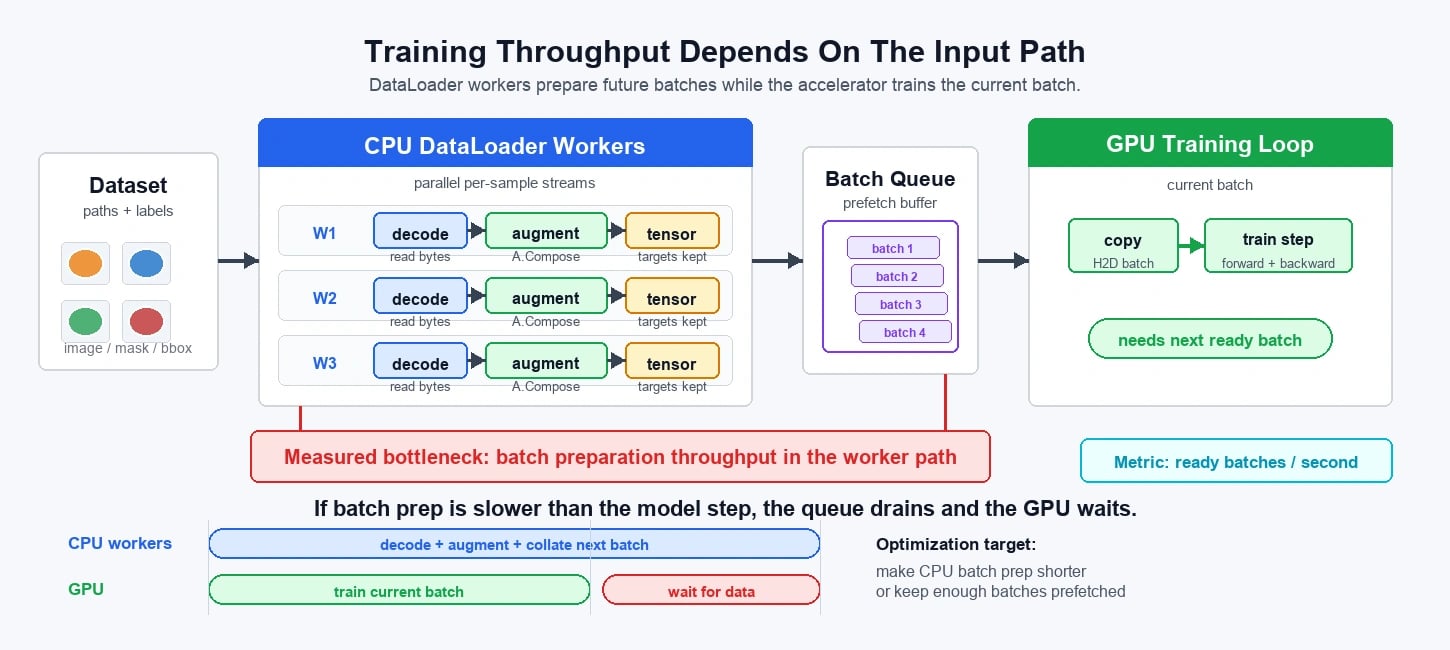
(For advice on selecting augmentations that improve model generalization, see the Choosing Augmentations guide.)
Quick Reference: Performance Essentials
Critical performance rules, in order of impact:
- Crop early: Put RandomCrop or RandomResizedCrop first when possible, so later transforms process fewer pixels.
- Fix OpenCV threading: Add
cv2.setNumThreads(0)when Albumentations runs inside PyTorchDataLoaderworkers. - Use
uint8images: Keep images asuint8until final Normalize. - Combine transforms: Use Affine instead of separate rotate, scale, translate, and shear operations.
- Optimize image reading: Use OpenCV (
cv2.imread) or torchvision (torchvision.io.decode_image) instead of PIL/Pillow for JPEG-heavy pipelines.
Performance Comparison Example:
# Slow: large image processing
slow = A.Compose([
    A.HorizontalFlip(p=0.5),           # 1024x1024 → 1M pixels
    A.RandomBrightnessContrast(p=0.2), # 1024x1024 → 1M pixels
    A.RandomCrop(224, 224, p=1.0),     # Finally crop
])

# Fast: crop first
fast = A.Compose([
    A.RandomCrop(224, 224, p=1.0),     # 224x224 → 50K pixels
    A.HorizontalFlip(p=0.5),           # 224x224 → 50K pixels
    A.RandomBrightnessContrast(p=0.2), # 224x224 → 50K pixels
])
# Result: ~16x fewer pixels processed by most transforms!
Common Performance Killers:
- Large images processed through entire pipeline
- Multiple DataLoader workers fighting for OpenCV threads
- Expensive transforms applied to full-resolution images
- PIL/Pillow-based image loading instead of OpenCV/torchvision
Performance Optimization Strategies
1. Prefer uint8 Images
Albumentations supports both uint8 (0-255) and float32 ( 0.0-1.0) image formats. While float32 might seem necessary for normalized inputs later, many underlying OpenCV functions used by Albumentations are optimized for uint8.
- Important Note on
float32: If you providefloat32images, Albumentations expects them to be in the range[0.0, 1.0]. Values outside this range will be clipped. Ensure your float images are scaled appropriately before passing them to the pipeline if they are not already in the[0.0, 1.0]range. - Recommendation: Perform as much of your augmentation pipeline as possible using
uint8images. Operations are often faster or at least the same speed compared tofloat32. You can apply A.Normalize directly touint8images; it handles the conversion to float and scaling correctly based on themax_pixel_value(which defaults to 255 foruint8).
2. Crop Early, Crop First
Applying augmentations to smaller images is significantly faster. If your workflow involves cropping the image (e.g., to a fixed input size for your model), do it as early as possible in the pipeline.
- Example: Cropping an image from 1024x1024 down to 256x256 reduces the number of pixels by a factor of ( (1024 \times 1024) / (256 \times 256) = 16 ). Subsequent augmentations in the pipeline only need to process 1/16th of the original data, leading to significant speedups.
- Recommendation: Place transforms like CenterCrop, RandomCrop, or especially RandomResizedCrop at the beginning of your
Composeblock. This drastically reduces the number of pixels processed by subsequent augmentations.
import albumentations as A

# Good: Crop first
fast_pipeline = A.Compose([
    A.RandomResizedCrop(size=(224, 224), scale=(0.8, 1.0), p=1.0),
    A.HorizontalFlip(p=0.5),
    A.RandomBrightnessContrast(p=0.2),
    # ... other transforms on 224x224 image ...
    A.Normalize(mean=(0.485, 0.456, 0.406), std=(0.229, 0.224, 0.225)),
])

# Bad: Crop last (much slower)
slow_pipeline = A.Compose([
    A.HorizontalFlip(p=0.5), # Applied to large image
    A.RandomBrightnessContrast(p=0.2), # Applied to large image
    # ... other transforms on large image ...
    A.RandomResizedCrop(size=(224, 224), scale=(0.8, 1.0), p=1.0),
    A.Normalize(mean=(0.485, 0.456, 0.406), std=(0.229, 0.224, 0.225)),
])
3. Combine Transforms Where Possible
Fewer transforms generally mean less overhead. Look for opportunities to use transforms that combine multiple operations.
- Example 1: Instead of padding and then cropping, use the built-in padding in cropping transforms. All of Crop, CenterCrop, and RandomCrop support the
pad_if_needed=Trueargument: - Example 2: Instead of separate flips, use SquareSymmetry which combines horizontal and vertical flips (including diagonal options):
- A.HorizontalFlip(p=...) + A.VerticalFlip(p=...) -> A.SquareSymmetry(p=...) (Note:
SquareSymmetryapplies one of the 4 symmetries: identity, horizontal, vertical, or diagonal flip, based on its internal logic. It's not a direct 1:1 replacement for applying both flips independently but covers similar transformations).
- A.HorizontalFlip(p=...) + A.VerticalFlip(p=...) -> A.SquareSymmetry(p=...) (Note:
- Example 3: Instead of separate rotation and scaling, use Affine, which handles rotation, scaling, translation, and shear in one operation:
Check the documentation for transforms like Affine, and RandomResizedCrop as they often combine multiple geometric actions efficiently.
4. Optimize Image Reading
While not strictly an Albumentations optimization, the way you read image files from disk significantly impacts overall pipeline speed. Different image loading libraries have dramatically different performance characteristics.
Performance Benchmark Results
Recent comprehensive benchmarks comparing image loading libraries show significant performance differences. The chart below shows performance comparison on Apple Silicon (M4 Max):

Source: imread_benchmark repository - "Need for Speed: A Comprehensive Benchmark of JPEG Decoders in Python" by Vladimir Iglovikov
Recommended Libraries (Fast)
Top performers using libjpeg-turbo:
- OpenCV (
cv2.imread) - Excellent cross-platform performance, widely available - torchvision (
torchvision.io.decode_image) - Fast and integrates well with PyTorch workflows - kornia-rs - Modern Rust-based implementation with consistent performance
Avoid for Performance-Critical Applications
Slower libraries using standard libjpeg:
- PIL/Pillow - Significantly slower than alternatives
- scikit-image - Slower decoding performance
- imageio - Generally slower for JPEG decoding
Implementation Example
import cv2
import torch
from torchvision.io import decode_image

# Fast option 1: OpenCV (returns BGR, need to convert to RGB)
def load_image_opencv(path):
    image = cv2.imread(path)
    if image is not None:
        image = cv2.cvtColor(image, cv2.COLOR_BGR2RGB)
    return image

# Fast option 2: torchvision (returns tensor, convert to numpy if needed)
def load_image_torchvision(path):
    with open(path, 'rb') as f:
        image_bytes = f.read()
    image = decode_image(torch.frombuffer(image_bytes, dtype=torch.uint8))  # Returns tensor in RGB
    return image.permute(1, 2, 0).numpy()  # Convert to numpy if needed

# Slower option (avoid in performance-critical code)
def load_image_pil(path):
    from PIL import Image
    import numpy as np
    image = Image.open(path).convert('RGB')
    return np.array(image)
Performance Impact: Switching from PIL to OpenCV or torchvision can provide 2-3x speedup in image loading, especially noticeable when processing large datasets or using multiple DataLoader workers.
Recommendation: Use OpenCV (cv2.imread) or torchvision (torchvision.io.decode_image) for optimal performance. The imread_benchmark repository provides detailed benchmarks across different platforms and libraries.
5. Address Multiprocessing Bottlenecks (OpenCV & PyTorch)
When using Albumentations within a PyTorch DataLoader with multiple workers (num_workers > 0), you might encounter unexpected slowdowns. This often happens because OpenCV (cv2), the backend for many Albumentations transforms, can try to parallelize its own operations using multiple threads.
When each of your DataLoader workers spawns multiple OpenCV threads, they can contend for CPU resources, leading to overall slower performance than expected.
-
Solution: Force OpenCV to run in single-threaded mode within each worker process. Add this code at the beginning of your training script or within the worker initialization:
import cv2
cv2.setNumThreads(0)
# Optionally, disable OpenCL if not needed or causing issues
# cv2.ocl.setUseOpenCL(False)
Setting
cv2.setNumThreads(0)prevents OpenCV from creating its own thread pool within each worker, allowing PyTorch's multiprocessing to manage parallelism effectively.Further Reading: This issue and solution are also highlighted in the Lightly AI Blog Post.
6. CPU Augmentation vs GPU Tensor Augmentation
For most PyTorch training pipelines, Albumentations should run on CPU before batching. Each worker processes one sample, updates its targets, returns the result, and lets the GPU spend its time on forward and backward passes.
GPU tensor augmentation is useful only when profiling shows idle GPU compute and the operation is naturally tensor-native. If GPU augmentation competes with the model, it can reduce training throughput even when the transform itself looks fast in isolation.
The common high-throughput pattern is:
- decode image with OpenCV or torchvision
- run Albumentations per sample on CPU
- stack tensors in the PyTorch
DataLoader - optionally run tiny tensor-native postprocessing, such as batched input normalization (per-channel mean and std on the stacked batch tensor), on GPU
7. Batch Processing Considerations
Albumentations excels at per-image processing and consistently outperforms other augmentation libraries for individual image transformations, as demonstrated in the Image Benchmarks.
However, for large batch training scenarios (e.g., 1280 images per batch when training ResNet-18 on RTX 4090), there's an important performance consideration for normalization:
When to use batched input normalization on GPU
For large batches where the only remaining step is per-channel mean/std normalization (same role as torchvision.transforms.Normalize, not nn.BatchNorm), consider applying that normalization on GPU to the entire batch at once using torchvision:
# Albumentations pipeline (CPU) - exclude normalization
cpu_pipeline = A.Compose([
    A.RandomResizedCrop(size=(224, 224), scale=(0.8, 1.0), p=1.0),
    A.HorizontalFlip(p=0.5),
    A.RandomBrightnessContrast(p=0.2),
    # Note: No A.Normalize here
])

# In your training loop (batched input normalization on GPU)
import torchvision.transforms as T

normalize = T.Normalize(mean=[0.485, 0.456, 0.406], std=[0.229, 0.224, 0.225])

# Apply augmentations per-image on CPU
batch_images = []
for image in cpu_images:
    augmented = cpu_pipeline(image=image)['image']
    batch_images.append(torch.from_numpy(augmented).permute(2, 0, 1))

# Stack to batch and normalize on GPU
batch_tensor = torch.stack(batch_images).float() / 255.0  # Convert to [0,1]
batch_tensor = batch_tensor.to(device)
normalized_batch = normalize(batch_tensor)  # per-channel mean/std on batch tensor
Performance Trade-offs
Use Albumentations normalization when:
- Small to medium batch sizes
- Complex augmentation pipelines with multiple transforms
- Need consistent per-image processing workflow
Use batched input normalization on GPU when:
- Very large batch sizes (>512 images)
- Simple pipelines with mostly geometric transforms + normalization
- Have sufficient GPU memory for batch processing
The Video Benchmarks demonstrate these batch processing performance characteristics across different scenarios.
Where to Go Next?
After optimizing your pipeline for speed, you might want to:
- Apply to Your Task: Return to the specific basic usage guides (e.g., Classification, Segmentation) and integrate these performance tips.
- Revisit Choosing Augmentations: Evaluate the performance impact of the transforms you selected for generalization.
- Explore Transforms Visually: Upload your own images and test if combined transforms like Affine or RandomResizedCrop can replace multiple slower steps in your pipeline.
- Image Loading Benchmark: See detailed performance comparisons of different image loading libraries across platforms.
- Dive into Advanced Guides: Explore further customization and optimization options.